Introducing Compare: Your Shortlist, Side by Side
You have done the hard work. You explored neighbourhoods on the map, generated Analyze reports on your top contenders, and narrowed your search to two or three places that could genuinely work. Then comes the hardest part: choosing between them.
If you are anything like me, this is where it gets messy. You open a browser tab for each report and flip back and forth, trying to hold a dozen numbers in your head at once. Which one had the better schools? Which felt safer? Which actually fits the budget? You make mental notes, you lose them, you start over.
I have been there. So I built Compare to fix it.
The Problem With Comparing a Shortlist
When I was searching for my own home, the data was never the issue. Every Analyze report was thorough on its own: property value, safety, climate, access to amenities, and demographics, all in one place. The issue was putting two or three of those reports next to each other and pulling out what actually mattered.
So I did something a little absurd. I copied numbers into a spreadsheet, highlighted the differences by hand, and tried to turn thousands of data points into a decision. The data was all there. The synthesis was not.
What I really wanted was not a verdict. It was a clearer picture: everything laid side by side, the trade-offs that matter for my situation surfaced, and the noise cut away. That is exactly what Compare does.
How Compare Works
Compare reads the Analyze reports you have already generated and turns two or three of them into a single decision-support document. You do not re-enter anything, and you do not pay for new data. The comparison is built entirely from reports you already own.
Two rules keep it honest:
- Same type only. You compare properties against properties, or neighbourhoods against neighbourhoods, never a mix. Compare detects the type from your first selection and locks it, so every comparison stays apples to apples.
- Two or three at a time. A shortlist is short for a reason. Compare is tuned for the moment when you are down to your final contenders, not for browsing a long list.
The Side-by-Side Workspace
The moment you pick two reports, the workspace builds a live preview, before you generate anything:
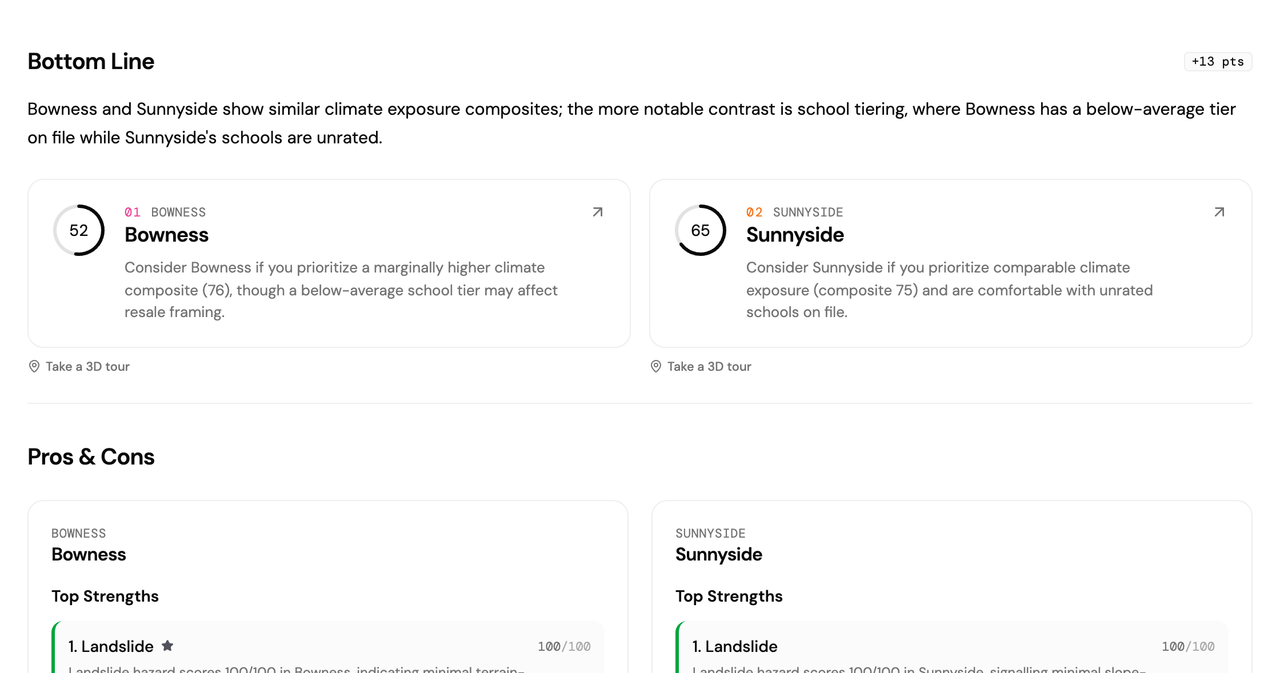
- Score rings for each option, calibrated to your profile.
- A lens-by-lens breakdown you can expand to see the raw metrics underneath each score.
- Priority pills. Tap "Prioritize safety" or "Prioritize walkability" and the scores reweight on the spot. You see how the ranking shifts the moment you lean on what you care about.
- The key trade-off, stated in a single line.
This preview is instant, and it does not use up a report. It is your existing data, reorganized. When you are ready for the full analysis, you generate the comparison report.
A Report That Helps You Decide, Not One That Decides for You
Generating a comparison produces a single-scroll decision-support document. It is not a wall of data. It is built so that by the time you reach the bottom, you understand the strengths, the weaknesses, and the trade-offs across your shortlist. The page starts rendering the moment you open it, and the written analysis streams in section by section.
The report walks through seven sections, top to bottom:
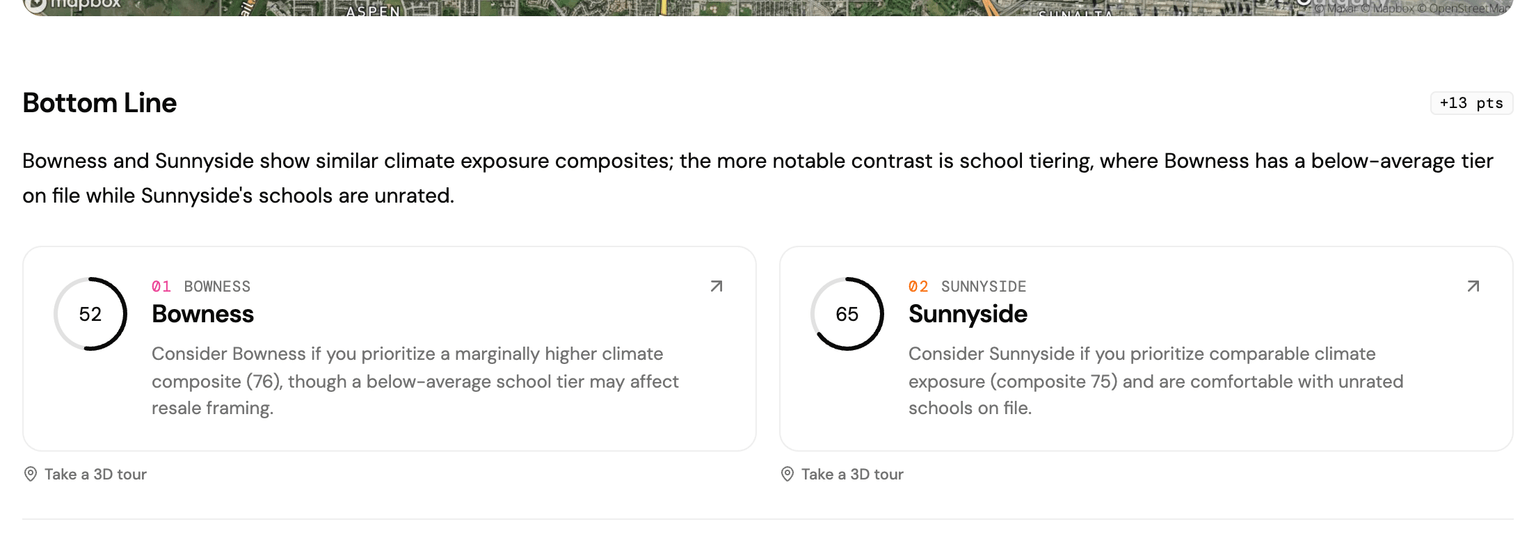
- Bottom Line. The headline up front: a score ring for each option, the size of the gap between them (or "Tied" when it is close), the priority pills, and a short, neutral synthesis with a one-line summary of each option.
- Pros and Cons. Each option's top strengths and main considerations, drawn from its underlying scores, with a quiet marker on whichever option leads a given strength.
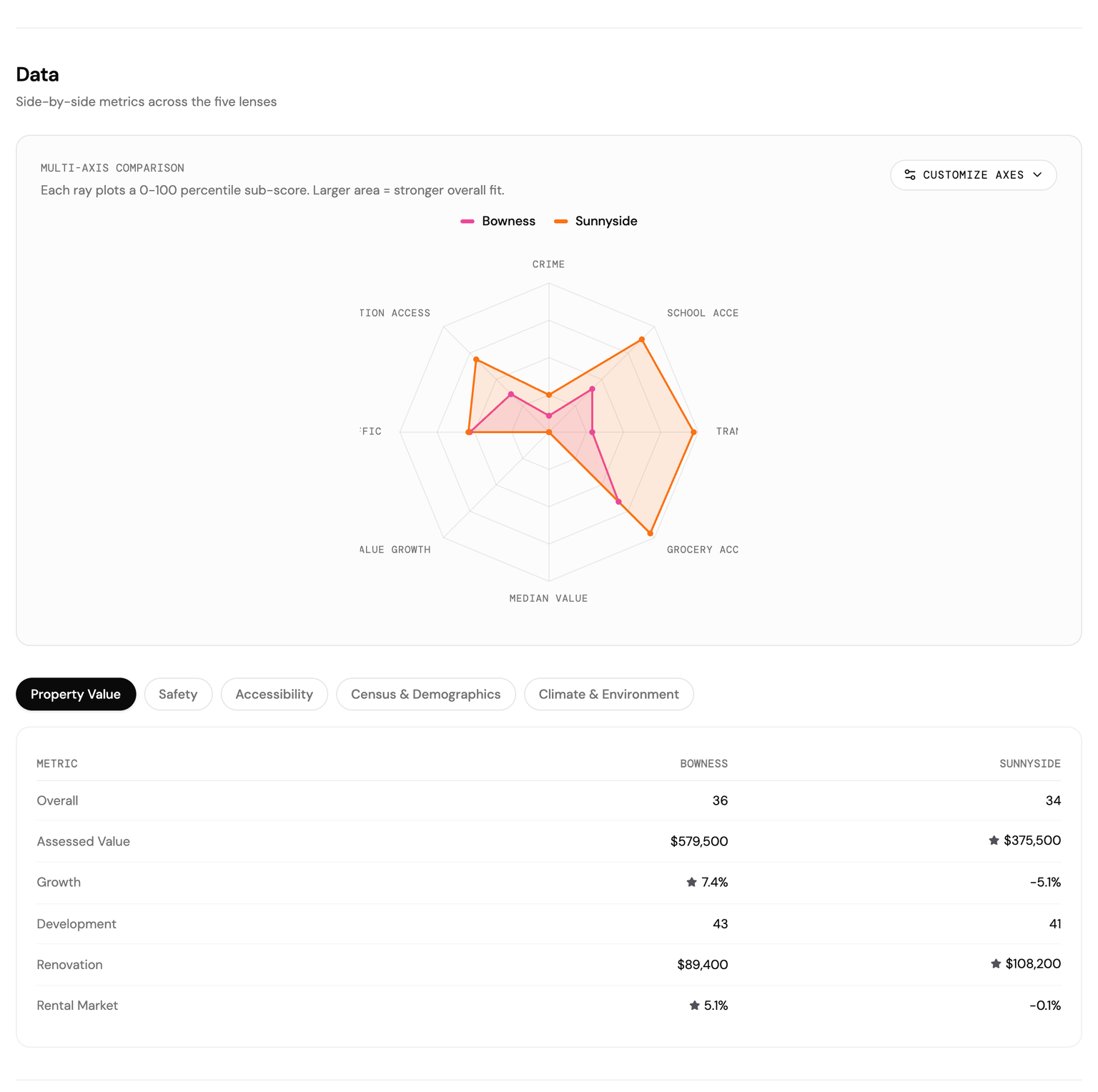
- Data. The five lenses side by side, with metric tables, comparisons against the city average and (for neighbourhoods) the community, and a subtle star on the rows where one option clearly leads.
- Trade-offs. The real tensions, written as "you gain this, you give up that," each tagged by how large the gap is: small, meaningful, or major.
- Scenarios. Guidance shaped as "consider this one if you prioritize that," across situations like schools, commute, affordability, quiet, walkability, family friendliness, climate safety, and investment growth. Only the scenarios your data actually supports appear.
- Risks. Per-option red flags surfaced by clear thresholds: a noise level above the health guideline, a declining value trajectory, a below-average school catchment, elevated wildfire or radon exposure. Each flag gets a one-sentence explanation. If nothing crosses the line, the report says so.
- Decision. A short priority-ordering exercise, a guide to weighing what is left, honest final thoughts, and a "what would change my mind" list.
It Never Declares a Winner
This is the part I care about most. Compare is written by a neutral analyst, and it does not crown a winner. On objective dimensions, where one option measurably leads, it adds a subtle star. Everywhere else, the language stays in the form of "consider this one if you prioritize that," because the right answer depends on your priorities, not mine.
Scores are doors, not verdicts. When two options are genuinely close, the report tells you they are close, instead of manufacturing a winner. Sometimes the honest answer really is "it depends on what matters to you," and the report is comfortable saying that.
Five Lenses, Side by Side
The Data section lays all five lenses next to each other so you can read the differences directly instead of flipping between reports:
- Property Value: assessed value, year-over-year change, and longer-term trajectory.
- Safety: crime rates and trends, traffic incidents, street lighting, and noise.
- Climate: flood, wildfire, and other hazard exposure, including a forward-looking projection.
- Access: what is reachable on foot, by bike, by transit, and by car, plus schools and your saved commute destinations.
- Census and Demographics: household composition, ownership, and the makeup of the community.
Every metric is shown against the city, and for neighbourhood comparisons, against the broader community too, so a number always arrives with the context that makes it mean something.
Tuned to Your Profile
A comparison is only useful if it weighs what you weigh. When your reports are personalized, Compare calibrates the scores and the analysis to your profile.
A Growing Family comparison leans on schools, parks, traffic safety, and crime. An Investor comparison leans on appreciation, development activity, and the economic and demographic signals behind rental demand. Same two properties, different emphasis, because the question "which is better" only makes sense once you say "better for what."
Compare Neighbourhoods, Not Just Addresses
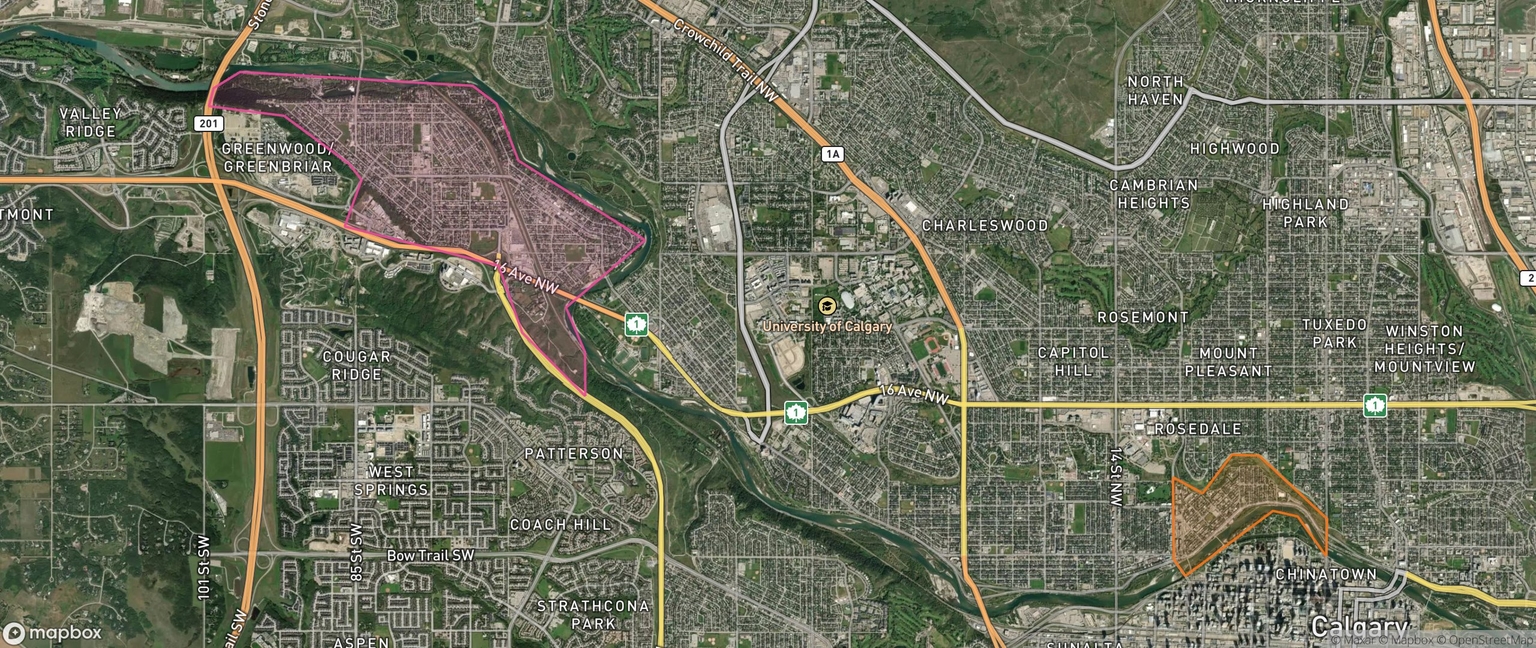
Compare is not limited to individual properties. You can put entire neighbourhoods side by side using community-level Analyze reports, and the view adapts automatically. Instead of pin markers on the map, you get boundary overlays tracing each neighbourhood's footprint. Instead of a single assessed value, you see medians, ranges, and total property counts. The same seven-section structure carries over, with the language shifting from "this property" to "this neighbourhood."
What Compare Does Not Do
Compare works from your existing Analyze reports. If you have not generated a report for a place, it cannot be compared yet. The workspace is helpful about this: when you ask to compare a neighbourhood you have not analyzed, it points you straight to analyzing it first.
Compare also cannot capture the intangibles: how the kitchen feels when you walk in, whether the street is quiet at night, the way afternoon light comes through the windows. Those things matter, and sometimes they matter most. Compare gives you the data foundation. The final decision is still yours.
Where Compare Fits
Compare is one step in a larger flow:
Explore to browse the map and discover neighbourhoods. Analyze to generate a deep report on any place that interests you. Compare to put your final two or three side by side and see the trade-offs clearly. Ask to keep the conversation going.
Every comparison has an "Ask about this comparison" link that opens the Ask advisor with the full context of what you are weighing. "What if we only had one car?" "How does this change if we plan to stay ten years instead of five?" It is a conversation with an advisor that already knows your shortlist. Each step builds on the last, and you can drop into Ask from anywhere.
Getting Compare
Compare shares the same report allowance as Analyze. Generating a comparison uses one report from your monthly total, and the side-by-side preview in the workspace does not, because it simply reorganizes reports you have already run.
Profile-weighted scores and personalized analysis come with HomeSeeker and Pro Agent, and you can download any comparison as a PDF on those plans. Pro Agents can add their own branding to a comparison and share it with clients, so the report doubles as a client-facing tool. And the 7-day free trial, which needs no credit card, runs at Pro Agent limits (minus branding and client sharing), so you can try the whole flow end to end before deciding anything.
If you have already generated a few Analyze reports, head to the Compare module and add your contenders. The first side-by-side view appears in seconds.
What's Next
Compare closes the loop on the core decision-making workflow: Explore to discover, Analyze to understand, Compare to weigh, Ask to talk it through. The platform now follows the whole arc, from the first map you open to the moment you feel ready to choose.
If you use Compare, I would love to hear how it goes. What helped? What was missing? What would make the comparison more useful for your specific situation? Your feedback has shaped PickYourPlace from the start, and it will keep guiding where this goes next.
Try Compare today at pickyourplace.app/compare.
Keep reading
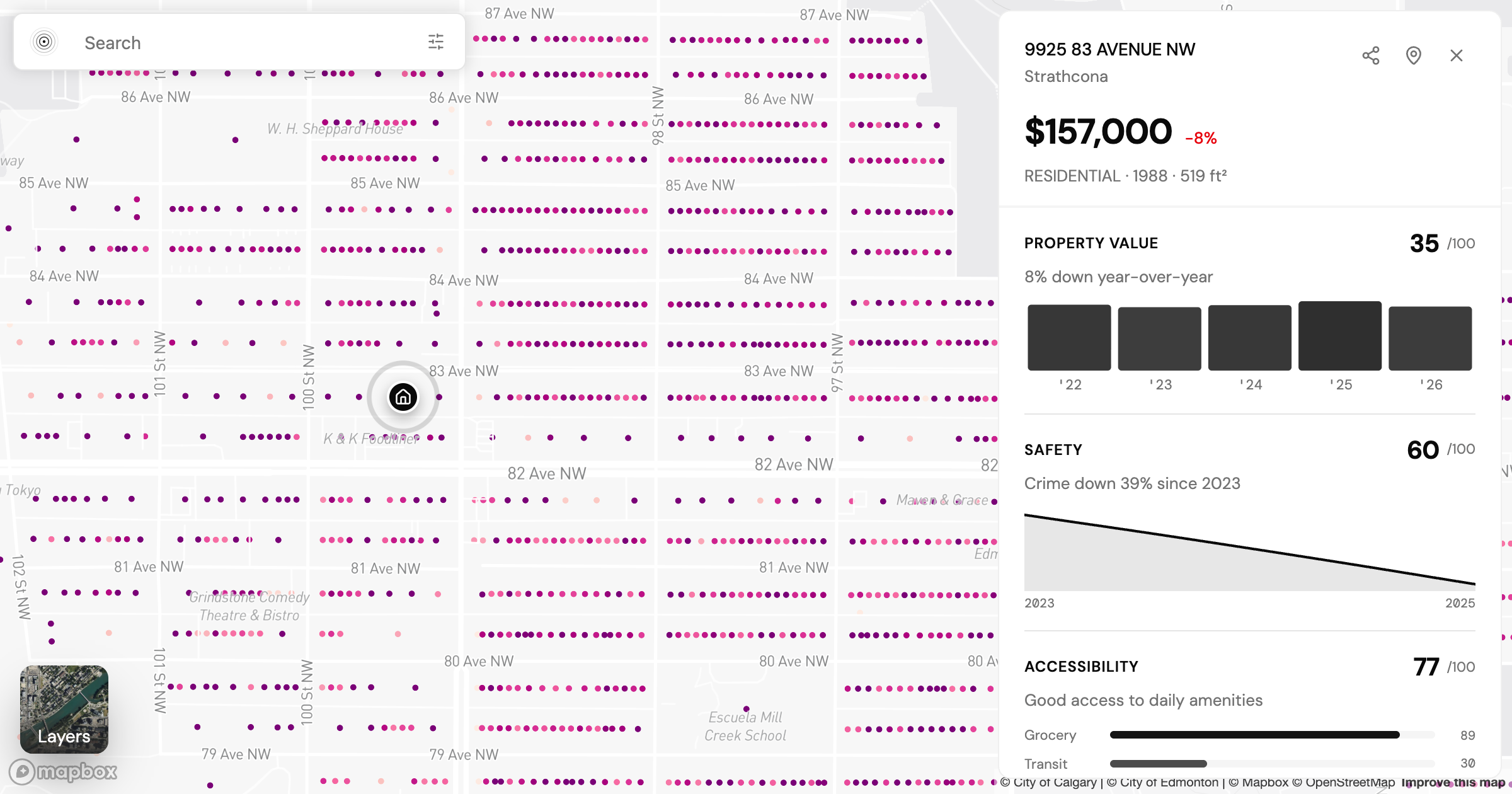
The Other Alberta: PickYourPlace Launches in Edmonton
PickYourPlace is now live in Edmonton, our third city. See how two of its neighbourhoods, Windermere and Strathcona, tell completely different stories once you look at the data.

Smarter Reports: TL;DR Summaries, Quick Scores, and Personalized Insights
Discover the new TL;DR section, quick scores, and enhanced personalization that help you evaluate properties in under 2 minutes. Screen properties fast, then dive deep when it matters.
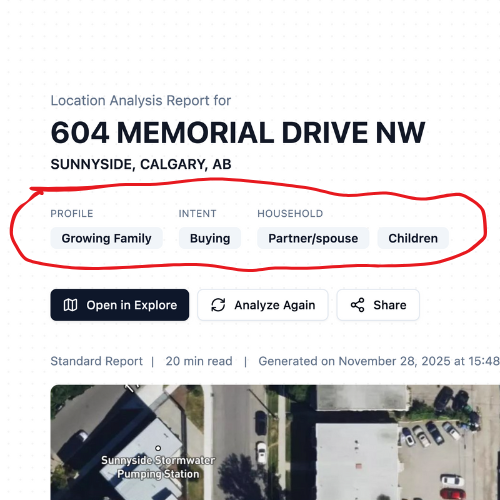
Your Place, Your Priorities: Introducing Personalized Reports
Same location. Same data. Completely different insights. Discover how personalization transforms generic location analysis into actionable insights tailored to your profile.
Find my place
The quickest way to see what changed is to run your own situation through it. Free, and no account needed.
Find my place